1 – Go to Default Apps
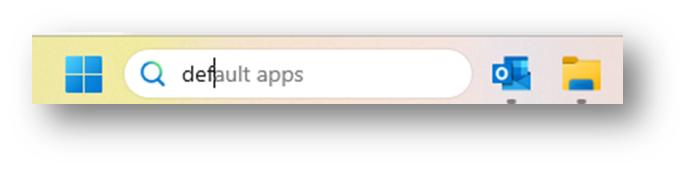
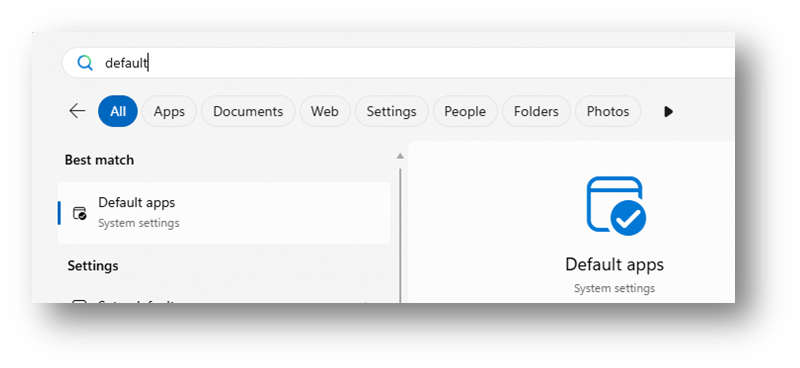
Open the Start Menu by clicking on the windows icon and searching “default apps” or type “default apps” in the menu bar on your windows desktop.
Or
2 – Default apps setting
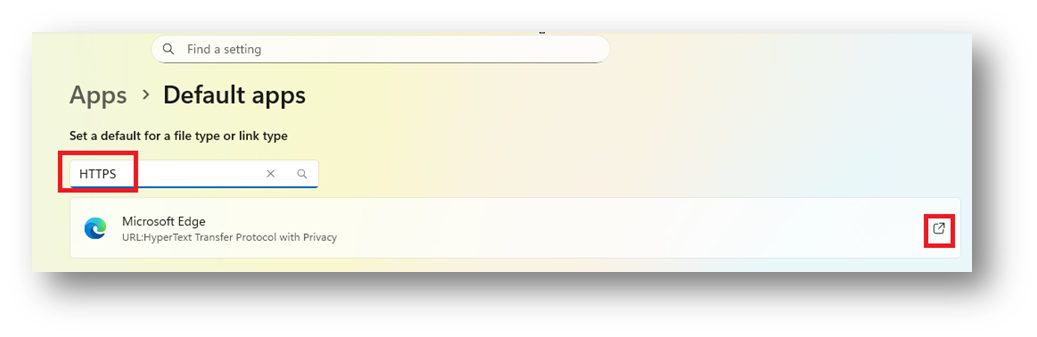
Type HTTPS (to show you which is the current default app for HTTPS links) and click on the box on the right:
Select the browser you want and click “Set Default”.
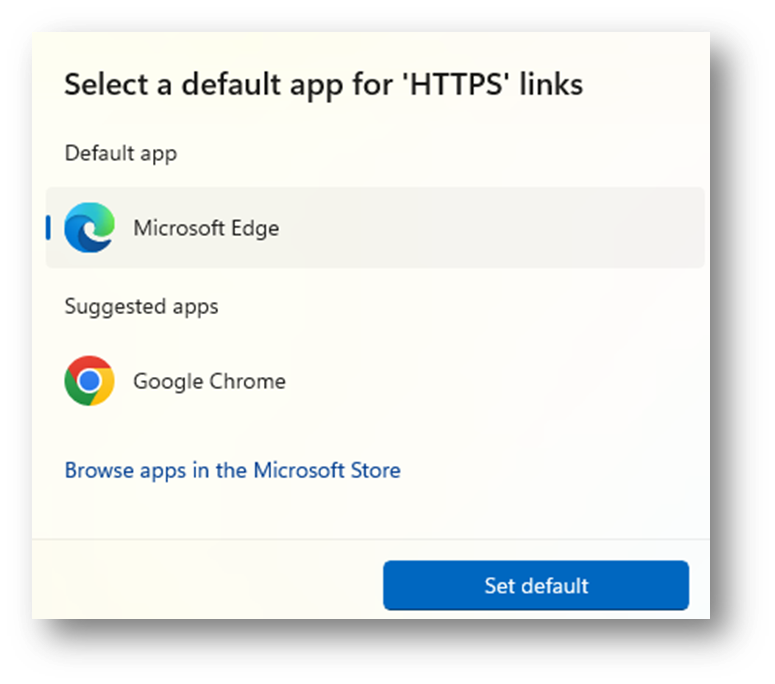
3 – All HTTPS links will now open in your preferred browser.
Was this article helpful?
That’s Great!
Thank you for your feedback
Sorry! We couldn't be helpful
Thank you for your feedback
Feedback sent
We appreciate your effort and will try to fix the article